
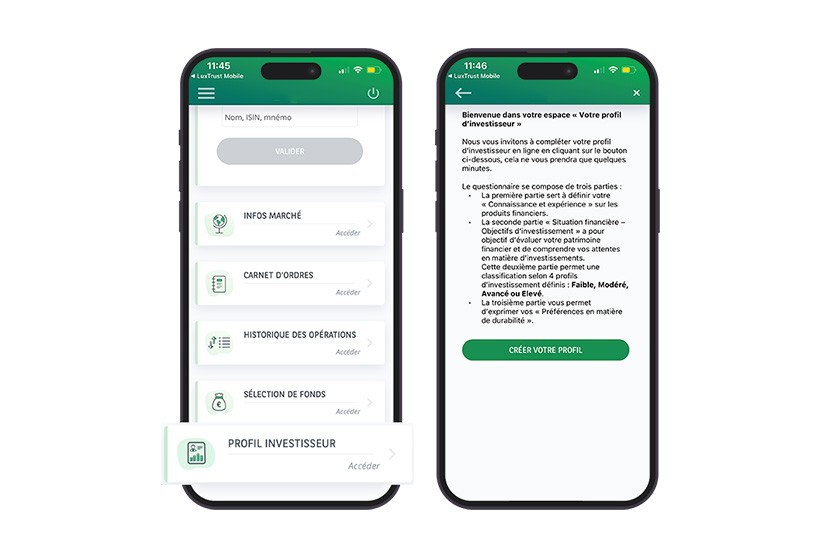
How to define your investor profile? 

Under the European MiFID directive, whether you are an occasional or regular investor, you must complete a questionnaire before placing your first stock market order.

Self-managed investments: 

If you manage your investments yourself under the Direct Invest Access option, you must answer a questionnaire about your knowledge and experience with different types of financial products.

Advisory or discretionary management: 

If you choose one of these services, you will need to complete, in addition to the section on your knowledge and experience, a questionnaire covering:

  • Your investment objectives
  • Your financial capacity
  • Your sustainability preferences

At the end of these questionnaires, you will receive your profile result (low, moderate, advanced or high risk).

Good to know 

  • Your profile can be printed or saved as a PDF.
  • You can request a profile override from your advisor if you wish to invest beyond your profile. To do so, under the ‘Investment’ tab, select ‘Investor Profile’, then ‘Profile Override Form’ and complete the form.


Place a stock market order 

  • How do I place a stock market order?
    You can buy or sell securities directly from your Web Banking area, securely.
     
    How to process?

    From the app or the webbanking website on webbanking.bgl.lu, From the menu, select ‘Investments’ then ‘Market Info’.

    1. In the search bar, look for a security using its name or ISIN code.
    2. Select Buy or Sell, enter the quantity or amount, choose the order type and the account to debit, then confirm.


    Good to know: On the website webbanking.bgl.lu, you can refine your search by clicking on ‘Detailed Search’.

    From your existing portfolio:

    If you already have a securities account, you can place an order directly from your portfolio:

    • On the app, in the ‘Investments’ section, select ‘My Portfolio’, swipe the line of the security to display quick actions.
    • On the website, select the security held and click Buy or Sell.
    Confirmation and tracking:

    Before confirmation, you can view:

    • The Suitability Statement (if you have an advisory agreement)
    • Costs & Charges related to the transaction

    After submission, your order is sent to the market as soon as possible.

  • How do I cancel a stock market order?

    You can cancel a stock market order remotely from your Web Banking area. From the app or the webbanking.bgl.lu , go to the menu, select ‘Investments’ , then ‘Order Book’ .

    1. Find the line corresponding to the order you want to cancel and select it.
    2. Cancellation is only possible if the order has not yet been transmitted to the market. In this case, on the website, click ‘Cancel Order’. On the app, swipe the line to cancel.
    3. A confirmation banner appears. Select ‘Yes’ to validate your cancellation request.
       

    Your cancellation request may not succeed if the order has already been transmitted or executed on the financial market. To check if the cancellation was successful, view the order status in the order book. If successful, the status will show ‘Cancelled’.

  • How do I view my current, completed or cancelled stock market orders?

    You can view your current, completed or cancelled stock market orders directly from your Web Banking area via the app or the webbanking.bgl.lu .Open the menu and select ‘Investments’, then ‘My Portfolio’.

    1. Via the ‘Order Book’ button, you will see all current orders as well as completed or cancelled orders within 2 days.
    2. Select the order line you want to view for details.
    3. Once an order is marked ‘Completed’ or ‘Cancelled’, you can find it by selecting the ‘Transaction History’ button for up to 30 days.


Did you know? 

Manage your investments easily from your Web Banking area and enjoy advanced features to monitor your assets:

  • Currency conversion: Convert your portfolio valuation into different currencies (EUR – USD – GBP – CHF – JPY – AUD – CAD)
  • Access to security details: Tap on the name of a financial instrument to access its detailed sheet.
  • Handy shortcuts: Use the ‘+’ button to quickly access the following pages:
    • Market Info
    • Order Book
    • Transaction History

Thanks to these tools, you have a complete and detailed visibility of your investments and portfolio.

View my portfolio 

  • How do I view my portfolio?

    You can view and analyse your portfolio, including your securities account, directly from your Web Banking area, via the app or the webbanking.bgl.lu .Access the menu, select ‘Investments’, then ‘My Portfolio’.

    Your portfolio is organised into several views, each offering detailled informatio to better understand the evolution and composition of your investments:

    1. Performance of securities: View the evolution of your cumulative performance over time and track the overall valuation of your portfolio.
    2. Asset allocation: Analyse the detailed composition of your portfolio by accounts, asset classes or currencies.

    Good to know: If you have chosen advisory management for your investments, you also have access to the risk analysis view. This allows you to assess the risk level of your portfolio based on your investor profile.

  • How can I check the performance of my portfolio?

    You can view a graphical history of your portfolio valuation and track the cumulative performance of your investments directly from your Web Banking area, via the app or the webbanking.bgl.lu. Open the menu, select ‘Investments’ then ‘My Portfolio’, and choose the ‘Performance’ tab.

    This tab displays all your securities accounts and cash accounts, with their valuations, as well as realised gains and losses. By tapping on a securities account, you can access position details, including additional information such as average purchase price and gains/losses. To navigate between charts, swipe left on the app or click the arrows below the charts on the webbanking.bgl.lu..

    You can customise the display period for your performance by selecting one of the following options:

    • Since the beginning of the year
    • Last 6 months
    • Last 12 months
    • Last 3 years

    Good to know: On the webbanking website on bgl.lu, you can choose any period within the last 10 years.

  • How can I check the allocation of my assets (excluding insurance and credit)?

    You have access to three detailed views that allow you to track the allocation of your portfolio according to different criteria directly from your Web Banking area, via the app or the webbanking.bgl.lu .

    Open the menu, select ‘Investments’, ‘My Portfolio’, then choose the ‘Allocation’ tab. To navigate between views. On the app: swipe the screen. On the website: click the arrows below the charts.

    1. Allocation by account

    View all your securities and cash accounts, with their valuations and weight in your portfolio. Select an account to display detailed positions and relevant informations

    2. Allocation by asset class

    Track the composition of your investments by category, with clear information on the weight of each asset class in your portfolio.

    3. Allocation by currency

    View the distribution of your assets by currency for a complete and dynamic overview of your portfolio composition.

    Good to know: On the webbanking.bgl.lu, you also have access to additional allocation levels (by sector, geographic area, rating or duration).

  • How can I see the risk level of my portfolio?(Only available if you have an advisory agreement)

    If you have chosen an advisory management for your investments, you have access to the risk analysis view. It allows you to assess the risk level of your portfolio based on your investor profile.

    Open the menu, select ‘Investments’, ‘My Portfolio’, then choose the ‘Risk’ tab.This section shows the risk level of your holdings, displayed as coloured gauges indicating their risk rating and distribution:

    • Green: When the risk level of your portfolio is equal to or below the maximum recommended risk for your profile.
    • Red: When the risk level of your portfolio exceeds the maximum recommended risk for your profile.
    • Orange: When your investor profile has expired.

    Good to know: To view this risk analysis, you must first define your investor profile. If you haven’t completed it yet, an alert message will invite you to do so.

What is Direct Invest Clic?  

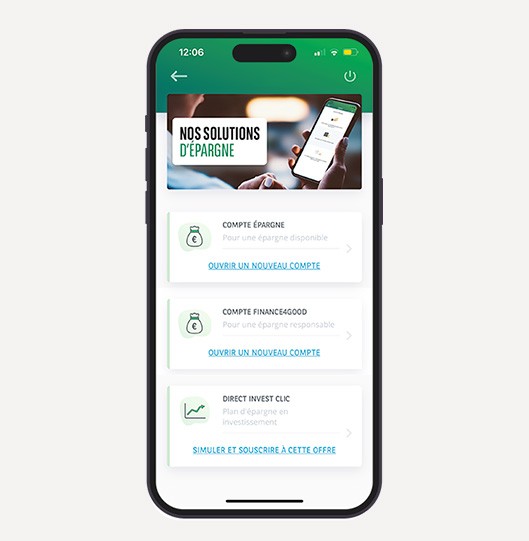
Direct Invest Clic is a simple and convenient solution to set up a regular savings plan in investment funds.

From your Web Banking area, you can manage your investments independently and remotely. You can choose the amount to invest and select the corresponding fund. The proposed fund selection is personalised based on your investor profile and risk tolerance.

  • How to subscribe to your online savings plan Direct Invest Clic? (Available only via the app)

    To subscribe to the Direct Invest Clic, an advisory agreement is required. If you already have an advisory offer, it is active, and you can start the subscription. With a non-advisory offer (Direct Invest Access), you must first validate the Advisory Agreement and the pre-contractual document before proceeding.

    How to access Direct Invest Clic?

    From your Web Banking app, open the menu, select ‘Products’ then ‘Direct Invest Clic’.

    Can I simulate my investment?

    Yes. By entering a monthly amount and a duration, you can view past performance of the recommended funds based on your investor profile, as well as a comparison with a traditional savings plan.

    Note: To view the recommended funds, your investor profile must be completed.

    Set up your contract:

    To finalise your contract settings, confirm:

    • The subscription amount
    • The account to debit
    • The debit date
    • Tap the ‘Subscribe’ button

    Read the confirmation page carefully, which summarises your contract details. Open the KIID document to access the confirmation button. Tap ‘Continue’. You have now completed your contract setup.

    Sign your contract:

    Tap the ‘Sign’ button and authenticate with your LuxTrust credentials to finalise the operation. Congratulations, you have subscribed to the Direct Invest Clic investment fund savings plan!

Direct Invest Clic

Invest with ease via the Web Banking app.

Your automatic financial savings plan in just a few clicks.


Do you have any other questions about the Web Banking area? 

PAYMENTS

How do I manage my payment cards?

How can I view my card balances? How do I pay online? How do I use Apple Pay?


Learn more >

CONTACT

How can I contact my adviser?

Do you want to contact your BGL BNP Paribas adviser via your Web Banking app? This FAQ guides you through the process, step-by-step.
 

Learn more >

PRODUCTS

What are the banking products?

How do I open a current/savings account? How can I order a new card? Where do I go to request a personal loan or mortgage offer?
 

Learn more >